What it looks like
The Daily Entries sheet
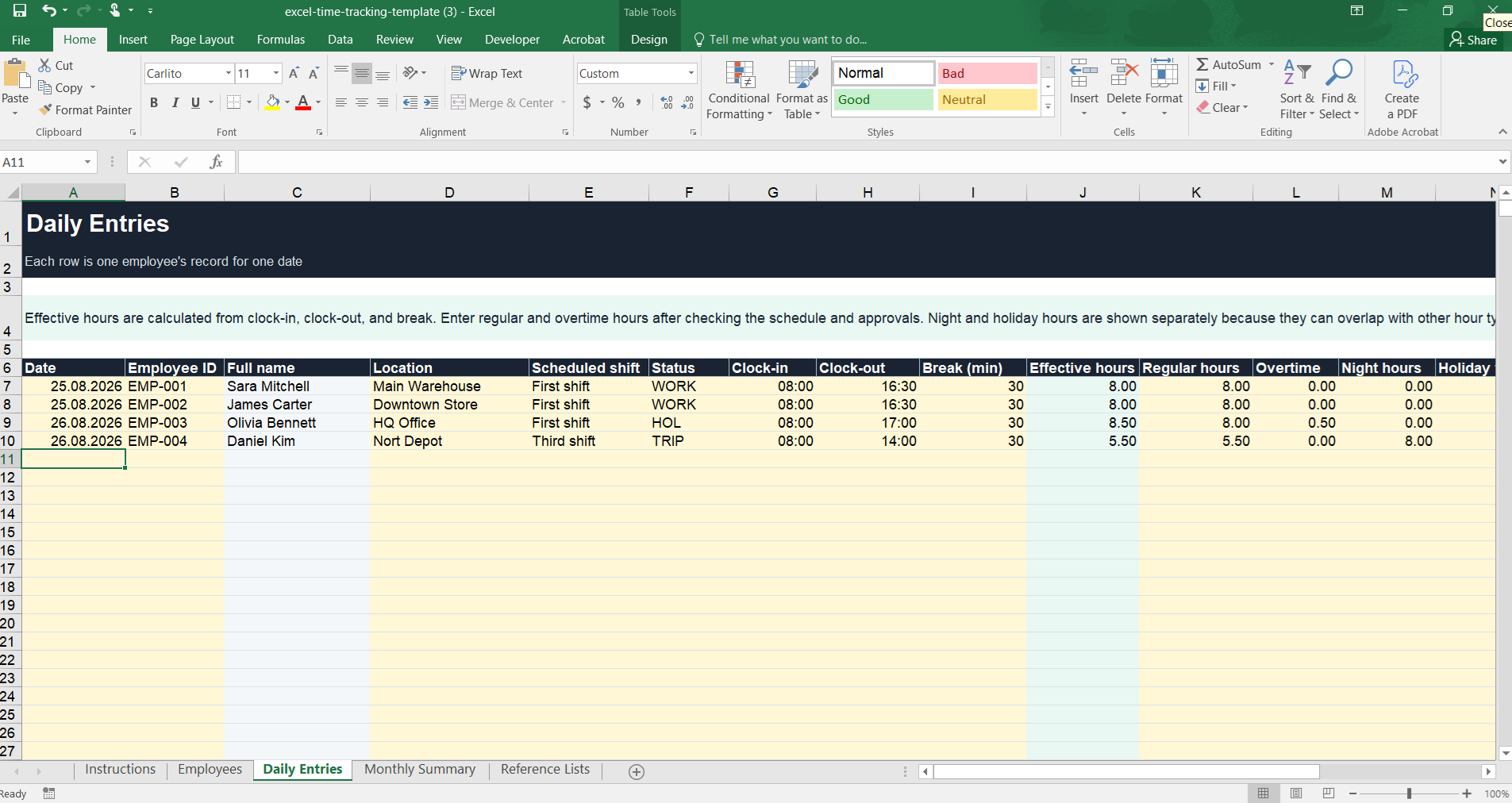
Add your employees and their daily clock-ins/clock-outs, and the template automatically sorts effective, regular, and overtime hours and prepares a monthly total per employee and a day-by-day monthly timesheet.
Download the free Excel template.xlsx file · no sign-up · Microsoft Excel or Google Sheets
Download started.
The template will help you keep records, but keeping it updated is still manual work. If you run multiple locations, shifts, or frequent manual corrections, take two minutes to check how much of that Atendo can take off your hands.
Check your processAdd your employees — on the "Employees" sheet, enter the ID, name, department, job title, location, status, and contracted daily hours.
Log daily entries — on the "Daily Entries" sheet, enter the date, employee ID, clock-in, clock-out, break, and hour types for each working day.
Classify the hours — effective hours are calculated automatically. Enter regular, overtime, night, and holiday hours according to your company's rules and approvals.
Pick a month — on the "Monthly Summary" sheet, enter the year and month number. The total is prepared automatically for each employee, and the "Monthly Timesheet" sheet shows the same month as a day-by-day grid.
Check for gaps — the "Unassigned hours" column shows the difference between effective hours and the regular/overtime hours you've classified.
The file is an organizational tool and does not constitute legal advice. Night work and holiday work can overlap with regular or overtime hours, so they're shown separately in the summary rather than added into one combined total. The date format depends on your Excel/Windows regional settings — if the "Monthly Summary" doesn't pick up an entry, check that the date is stored as an actual date, not as text.
A short walkthrough of the steps and a worked example (clock-in, clock-out, break → effective, regular, and overtime hours).
Master list: ID, full name, department, job title, primary location, status, and daily hours quota.
One row = one employee for one date: location, scheduled shift, clock-in, clock-out, break, effective/regular/overtime/night hours, holiday work, leave, note, approved by.
An automatic roll-up from the "Daily Entries" sheet per employee, for the year and month you choose, including any unassigned hours.
A monthly grid: employees in rows, days 1 to 31 in columns. Each cell shows effective hours or a status code (AL, SICK, HOL), with totals by hour type at the end of the row. Filled in automatically.
Status codes (work, annual leave, sick leave, holiday, business trip, maternity/parental leave, paid/unpaid leave) and shift codes (first, second, third, flexitime, field work) — extend them to match your company's rules.
Free, no sign-up. Works in Microsoft Excel and Google Sheets.
Download the Excel template (.xlsx)For sites without a computer — where employees sign in and out on paper by hand — use the Atendo daily attendance print template.
Open the print template →If several people update the sheet, you run different shifts or locations, and corrections get confirmed over chat, it's worth checking how much of that process Atendo can automate.
See how time tracking software takes this job off your hands.
Check your processYes, you can download and use the template for free. The file is an organizational tool and does not constitute legal advice.
Yes. The “Monthly Timesheet” sheet shows the selected month as a grid: employees in rows, days 1 to 31 in columns. Each cell shows effective hours, or the status code for days without hours (e.g. AL or SICK). It fills in automatically from the daily entries.
It can be, for a small team at a single location with a stable schedule. Problems usually start once several people edit the same document, different versions circulate, or corrections have no clear trail.
As the number of locations, shifts, and corrections grows, a manual Excel process often becomes unreliable — at that point it's worth considering dedicated time tracking software.